
Tech
How to Turn Off Windows Notifications: A Complete Guide to a Distraction-Free Experience

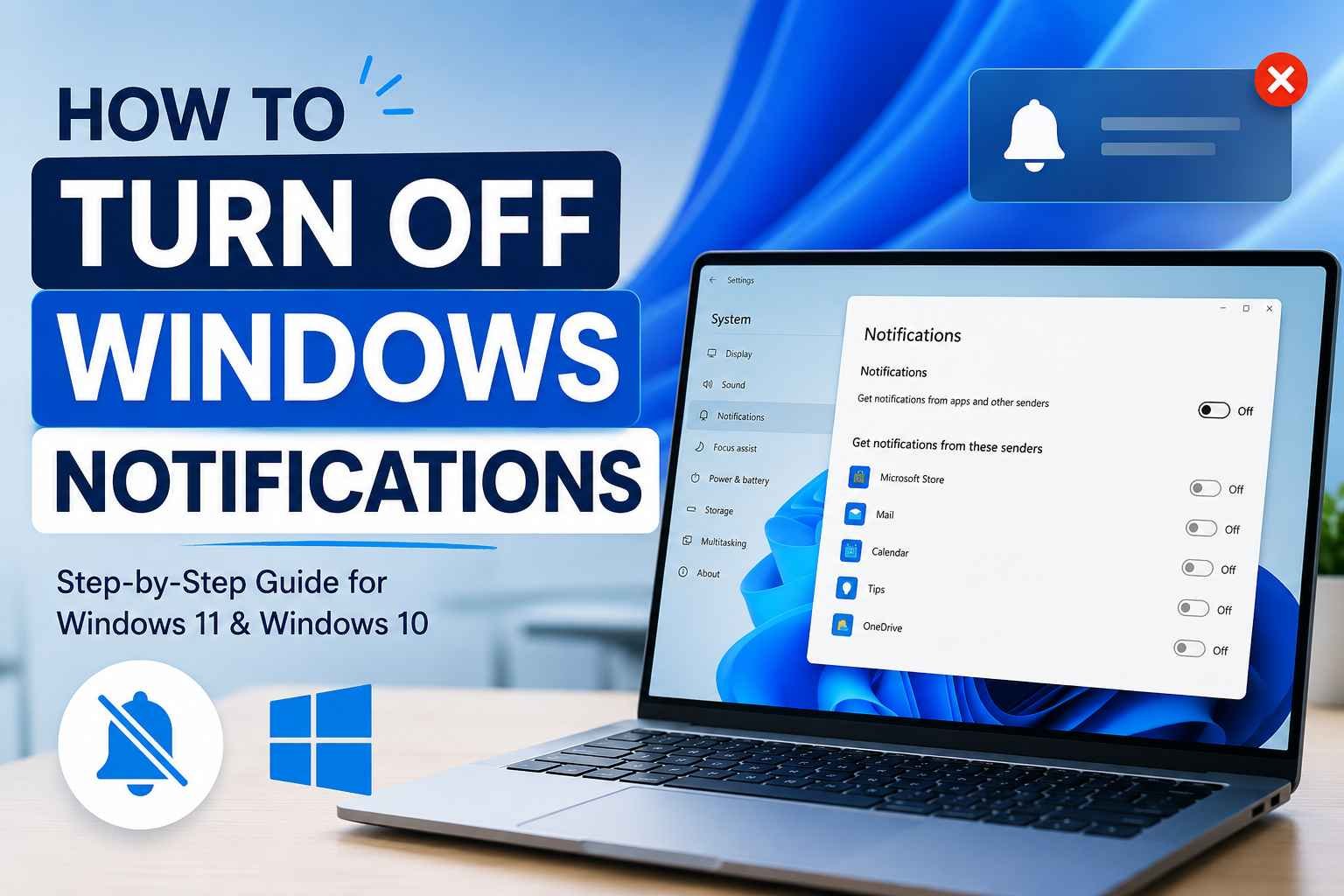
Windows notifications are designed to keep users informed about important updates, messages, reminders, and system activities. While these alerts can be useful, they often become a source of distraction, especially when working, studying, gaming, or attending online meetings. Constant pop-ups can interrupt concentration and reduce productivity.
If you are looking for a quieter and more focused computer experience, learning how to turn off Windows notifications can make a significant difference. Windows provides several ways to manage, customize, or completely disable notifications based on your preferences. This guide explains everything you need to know, from disabling all notifications to controlling alerts from specific apps.
Why Windows Notifications Can Be Distracting
Notifications are intended to deliver real-time information, but not every alert is important. Many applications send promotional messages, reminders, update alerts, and recommendations that may not be relevant to your current task.
Frequent interruptions can break concentration and make it difficult to stay focused. For professionals, students, and gamers, reducing unnecessary notifications can create a cleaner and more productive workspace. By adjusting notification settings, users can take control of what appears on their screens and when.
Understanding Windows Notification Settings
Before making changes, it is helpful to understand how Windows handles notifications. The operating system includes a centralized notification system that gathers alerts from apps, system services, emails, calendars, and security tools.
Windows allows users to:
- Disable all notifications.
- Turn off alerts from specific applications.
- Hide notification banners.
- Disable notification sounds.
- Use Focus Assist to limit interruptions.
- Customize lock screen notifications.
These options provide flexibility for different needs and work environments.
How to Turn Off Windows Notifications in Windows 11
Windows 11 offers a straightforward way to disable notifications entirely.
Step 1: Open Settings
Click the Start button and select Settings. You can also press Windows + I on your keyboard to open Settings instantly.
Step 2: Navigate to Notifications
In the Settings window, select System from the left sidebar. Then click Notifications.
Step 3: Disable Notifications
At the top of the Notifications page, you will see a switch labeled Notifications. Turn this switch off.
Once disabled, Windows will stop displaying notification banners, sounds, and alerts from apps and system services.
This is the fastest method for users who want a completely interruption-free experience.
How to Turn Off Windows Notifications in Windows 10
The process is slightly different in Windows 10 but remains simple.
Open Notification Settings
- Click the Start menu.
- Select Settings.
- Choose System.
- Click Notifications & Actions.
Disable Notifications
Locate the option labeled Get notifications from apps and other senders and switch it off.
This action disables most notifications across the operating system.
Turning Off Notifications for Specific Apps
Many users do not want to disable every notification. Instead, they prefer to silence only certain applications.
Windows allows app-level control through notification settings.
Manage Individual Applications
- Open Settings.
- Go to System and then Notifications.
- Scroll down to the list of installed applications.
- Select the app you want to manage.
- Turn notifications off for that specific app.
This method is useful for social media apps, messaging platforms, shopping applications, and other programs that generate frequent alerts.
Using Focus Assist for Better Concentration
Focus Assist is a built-in Windows feature designed to reduce interruptions during important tasks.
Instead of disabling notifications permanently, Focus Assist temporarily hides them.
How to Enable Focus Assist
- Open Settings.
- Navigate to System.
- Select Focus Assist.
- Choose one of the available modes:
- Off
- Priority Only
- Alarms Only
The Priority Only mode allows selected notifications while blocking others. This option is ideal for work sessions or online meetings.
Disabling Notification Sounds
Sometimes visual alerts are acceptable, but notification sounds can be annoying.
Windows allows users to disable sounds while keeping notifications active.
Steps to Turn Off Notification Sounds
- Open Settings.
- Go to System.
- Select Notifications.
- Choose the app you want to modify.
- Turn off the option labeled Play a sound when a notification arrives.
This creates a quieter environment without completely removing alerts.
Hiding Notifications on the Lock Screen
Lock screen notifications can expose personal information when your device is unattended.
For privacy and security, many users prefer to disable them.
How to Remove Lock Screen Notifications
- Open Settings.
- Navigate to System.
- Select Notifications.
- Find lock screen notification options.
- Disable notification display on the lock screen.
This prevents messages, reminders, and app alerts from appearing before login.
Preventing Browser Notifications
Web browsers often request permission to send notifications from websites. Over time, these alerts can become overwhelming.
Google Chrome
- Open Chrome.
- Click the three-dot menu.
- Select Settings.
- Navigate to Privacy and Security.
- Open Site Settings.
- Click Notifications.
- Block or remove unwanted websites.
Microsoft Edge
- Open Edge.
- Go to Settings.
- Select Cookies and Site Permissions.
- Choose Notifications.
- Disable notifications or manage individual sites.
Managing browser alerts can significantly reduce unwanted interruptions.
Managing Microsoft Store App Notifications
Applications downloaded from the Microsoft Store often send promotional messages and update reminders.
If these alerts are unnecessary, they can be disabled individually through Windows notification settings.
Review your installed applications regularly and remove permissions for programs that no longer need to send alerts.
Benefits of Turning Off Unnecessary Notifications
Reducing notifications offers several advantages beyond fewer interruptions.
Improved Productivity
Fewer distractions allow users to stay focused on important tasks for longer periods.
Better Gaming Experience
Notifications can interfere with gameplay and sometimes force users out of fullscreen mode.
Reduced Stress
Constant alerts create a sense of urgency. Limiting notifications can contribute to a calmer digital environment.
Enhanced Privacy
Disabling lock screen and unnecessary notifications helps protect sensitive information.
Cleaner Workspace
A notification-free desktop feels more organized and professional.
Common Mistakes to Avoid
Many users disable notifications completely and later miss important alerts. Instead of turning everything off immediately, consider reviewing each application’s notification settings.
Another common mistake is forgetting browser notifications. Even after disabling Windows alerts, websites can continue sending messages through web browsers.
Regularly checking notification settings ensures that only useful alerts remain active.
Conclusion
Understanding how to turn off Windows notifications can help create a more focused, productive, and distraction-free computing experience. Whether you use Windows 10 or Windows 11, Microsoft provides multiple options to manage alerts according to your needs.
You can disable all notifications, control individual apps, mute sounds, use Focus Assist, and prevent browser-based interruptions. The best approach depends on how you use your computer and which notifications are truly important.
By taking a few minutes to customize these settings, you can enjoy a cleaner desktop, better concentration, and a more enjoyable Windows experience.
More Details : How To Fix Slow Computer Windows 11: Practical Ways to Improve Performance
FAQs
1. Can I disable notifications for only one app?
Yes. Windows allows you to turn off notifications individually for any installed application.
2. Will disabling notifications affect Windows updates?
No. Windows updates will still be installed, but update alerts may not appear as notifications.
3. What is Focus Assist in Windows?
Focus Assist is a feature that temporarily limits interruptions by hiding non-essential notifications.
4. Can I disable notification sounds only?
Yes. Windows allows users to mute notification sounds while keeping visual alerts active.
5. Are browser notifications different from Windows notifications?
Yes. Websites can send notifications through browsers like Chrome and Edge, and these must be managed separately.

Immediate Loading Implants: How “Fixed Teeth in 48 Hours” Really Works

How UK Mobile Proxies Help Businesses Test Their Websites

Gen AI in Supply Chain: Using Supply Chain Benchmarks to Improve Performance

What Is the UK Theory Test? How It Works, Cost and Pass Mark

Weather the Storm: Why Totally Branded Umbrellas are the UK’s Most Appreciated Gift

How to Store, Wind, and Travel With Your Automatic Watch Collection Without Damaging It

What Do HubSpot Onboarding Services Include?

AI in Supply Chain: How AI Consulting Services Help Build More Intelligent and Resilient Operations

Hungary Dental Tourism: Quality Dental Care at Affordable Prices

Timur Turlov: A Vision for the Future of Global Chess
How to Store, Wind, and Travel With Your Automatic Watch Collection Without Damaging It
What Is the UK Theory Test? How It Works, Cost and Pass Mark
Weather the Storm: Why Totally Branded Umbrellas are the UK’s Most Appreciated Gift
Gen AI in Supply Chain: Using Supply Chain Benchmarks to Improve Performance
How UK Mobile Proxies Help Businesses Test Their Websites
Immediate Loading Implants: How “Fixed Teeth in 48 Hours” Really Works
Immediate Loading Implants: How “Fixed Teeth in 48 Hours” Really Works
How UK Mobile Proxies Help Businesses Test Their Websites
Gen AI in Supply Chain: Using Supply Chain Benchmarks to Improve Performance
What Is the UK Theory Test? How It Works, Cost and Pass Mark
Weather the Storm: Why Totally Branded Umbrellas are the UK’s Most Appreciated Gift
How to Store, Wind, and Travel With Your Automatic Watch Collection Without Damaging It
What Do HubSpot Onboarding Services Include?
AI in Supply Chain: How AI Consulting Services Help Build More Intelligent and Resilient Operations
Hungary Dental Tourism: Quality Dental Care at Affordable Prices
Timur Turlov: A Vision for the Future of Global Chess
-

 Tech8 months ago
xxx is equal to 2022: A Complete Informative Explanation of a Cubic Equation
-

 Celebrity8 months ago
Izzie Balmer Partner: A Deep Dive into the Relationship with Will Hawley
-

 Entertainment8 months ago
The Artistic World of Gege Akutami: A Mastermind Behind Jujutsu Kaisen
-

 Food5 months ago
Best Sushi Rice Brands: A Complete Guide to Choosing the Right Rice for Sushi