
Tech
What Is BIOS Boot Order? A Complete Guide to Computer Startup Settings

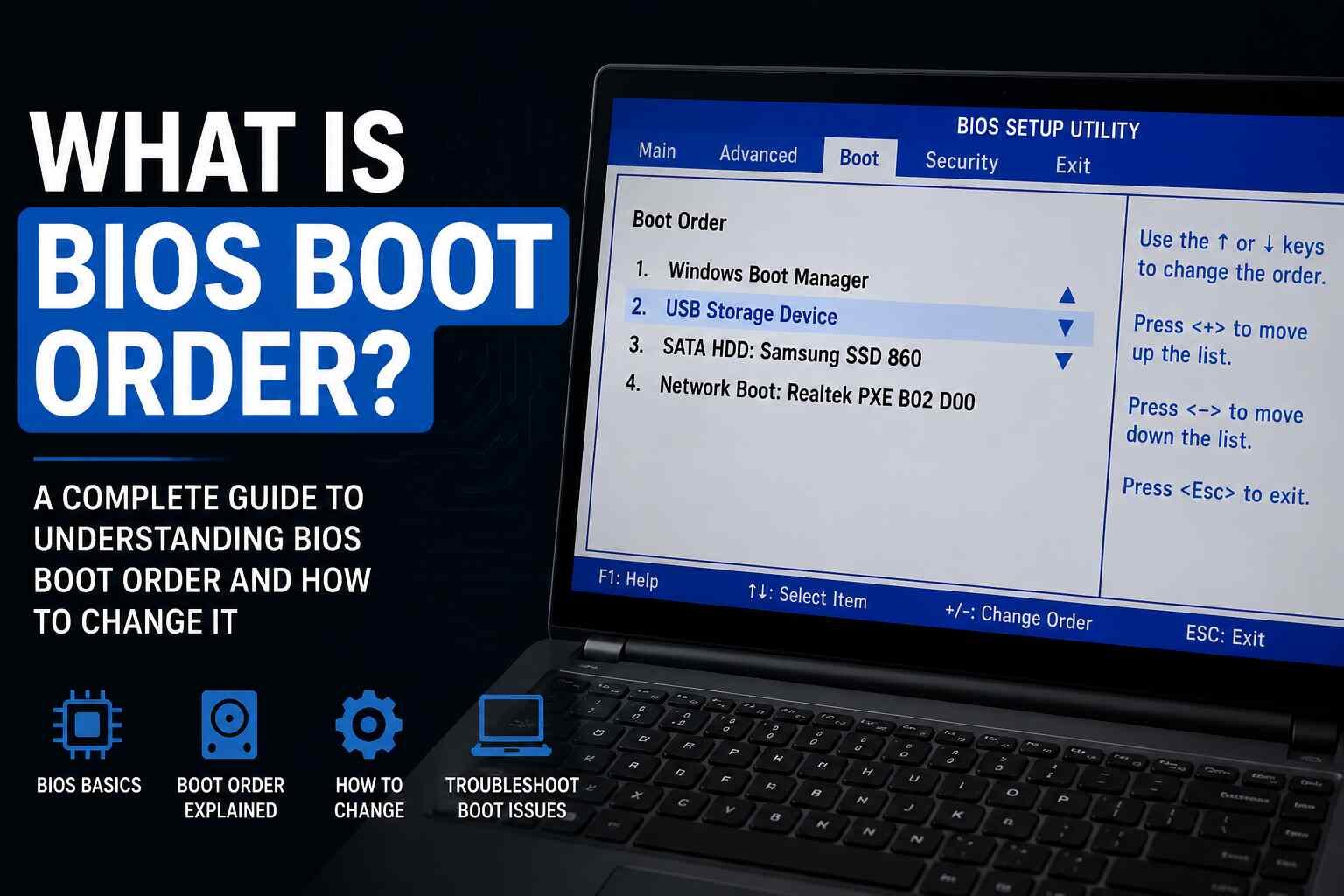
Computers perform many automatic tasks within seconds after being powered on. One of the most important processes during startup is the boot sequence controlled by the BIOS. Most users only hear about these settings when installing Windows, fixing startup errors, or changing storage devices. However, understanding how boot order works can help you manage your computer more effectively and solve common startup problems without confusion.
This guide explains what is bios boot order in a simple and informative way while covering everything from how it works to why it matters in modern computers.
Understanding the Role of BIOS in a Computer
Before learning about boot order, it is important to understand the purpose of BIOS.
BIOS stands for Basic Input/Output System. It is firmware installed on the motherboard that starts running immediately after the computer is turned on. The BIOS checks whether hardware components such as RAM, processor, keyboard, and storage drives are functioning properly.
Once the hardware check is complete, the BIOS searches for a device containing an operating system. The sequence it follows while checking these devices is known as the boot order.
Without BIOS, the computer would not know how to begin loading the operating system.
What Is BIOS Boot Order?
The phrase what is bios boot order refers to the order in which a computer checks storage devices to find bootable operating system files during startup.
A computer may contain several devices capable of booting, including:
- SSDs
- Hard drives
- USB flash drives
- DVDs or CDs
- External drives
- Network boot servers
The BIOS follows a specific sequence while checking these devices. For example, if the boot order is set like this:
- USB Drive
- SSD
- DVD Drive
The system first searches the USB drive for boot files. If no operating system is found there, it moves to the SSD. If the SSD also fails, it checks the DVD drive.
This startup sequence continues until the BIOS finds a valid operating system.
Why BIOS Boot Order Is Important
Boot order settings play a major role in how the computer behaves during startup. Incorrect settings may prevent the operating system from loading properly, while correct settings make installations and troubleshooting easier.
Installing Windows or Linux
When users install a new operating system, they usually use a bootable USB drive. For the installation to begin, the USB device must be placed higher than the internal storage drive in the boot order.
Otherwise, the system will continue loading the already installed operating system.
Fixing Startup Problems
If Windows becomes corrupted, users often boot recovery tools from external devices. Changing the boot sequence allows the computer to start from repair software instead of the damaged operating system.
Running Multiple Operating Systems
Some users install more than one operating system on different drives. The BIOS boot order helps determine which operating system loads first.
Faster Boot Experience
Keeping the main SSD at the top of the list reduces unnecessary device checks and may slightly improve startup speed.
How the BIOS Boot Process Works
The boot process begins immediately after pressing the power button.
Power-On Self-Test
The BIOS first performs a diagnostic process called POST, which stands for Power-On Self-Test. During this stage, the system checks essential hardware components.
If a hardware problem exists, the BIOS may display warning messages or beep codes.
Searching for Bootable Devices
After POST finishes successfully, the BIOS starts checking devices based on the configured boot order.
The firmware searches for:
- Boot sectors
- Operating system loaders
- System startup files
If the BIOS finds valid boot information, the operating system begins loading into memory.
If no device contains bootable files, an error message appears on the screen.
Common Devices Found in BIOS Boot Order
Modern computers support several bootable devices.
SSDs and Hard Drives
Most operating systems are installed on internal SSDs or hard drives. These are usually the default boot devices in personal computers.
SSDs are faster and more reliable than traditional hard drives, which is why modern systems prefer them.
USB Flash Drives
USB devices are commonly used for:
- Windows installation
- Linux live environments
- Recovery tools
- Antivirus scanning
- BIOS updates
Bootable USB drives are extremely popular because they are portable and easy to create.
Optical Drives
DVD and CD drives were once the primary method for installing operating systems. Although less common today, some systems still support optical booting.
Network Boot Options
Business environments sometimes use network booting to deploy operating systems remotely across multiple computers.
How to Access BIOS Boot Order Settings
Changing the boot sequence requires entering the BIOS setup utility.
Different manufacturers use different keys during startup, such as:
- Delete
- F2
- F10
- Esc
The correct key usually appears briefly on the startup screen.
After entering BIOS, users can locate sections called:
- Boot Menu
- Boot Priority
- Boot Sequence
- Startup Settings
These menus allow users to rearrange the order of boot devices.
How to Change BIOS Boot Order Correctly
Many users change these settings while installing Windows or troubleshooting system issues.
Step 1: Restart the Computer
Restart the system and press the BIOS access key repeatedly during startup.
Step 2: Open Boot Settings
Navigate to the boot section inside the BIOS interface.
Step 3: Rearrange Device Priority
Move the preferred boot device to the top of the list.
For example:
- Place USB first for operating system installation
- Place SSD first for regular daily use
Step 4: Save and Exit
Save the changes and restart the computer.
The BIOS will now follow the updated boot sequence.
Difference Between BIOS and UEFI Boot Order
Modern computers often use UEFI instead of traditional BIOS firmware.
UEFI stands for Unified Extensible Firmware Interface. It is an advanced replacement for older BIOS systems and offers several improvements:
- Faster startup
- Better security
- Mouse support
- Larger drive compatibility
- Improved graphical interface
Although UEFI works differently internally, it still uses boot order settings similar to BIOS.
Most people continue using the term BIOS even when referring to UEFI systems.
Signs of Incorrect Boot Order Settings
Improper boot settings can create several startup issues.
“No Bootable Device” Errors
This happens when the BIOS checks a device without valid operating system files.
Endless Restart Loops
Incorrect boot configuration may cause repeated startup failures.
Slow Startup Time
The BIOS may waste time checking unnecessary devices before reaching the correct drive.
Wrong Drive Loading
In systems with multiple storage drives, the computer may start the wrong operating system.
Situations Where Boot Order Must Be Changed
Most users rarely change these settings, but certain situations require it.
Installing a New Operating System
Bootable installation media must usually be placed first temporarily.
Using Recovery Tools
External repair software often requires USB booting.
Replacing Old Storage Drives
After upgrading to a new SSD, users may need to prioritize the new drive.
Testing Portable Operating Systems
Some Linux systems can run directly from USB drives without permanent installation.
Security Benefits Related to Boot Order
Boot order settings also affect system security.
If external devices are allowed to boot freely, unauthorized users may load operating systems from USB drives to access files.
To improve security, many users:
- Disable USB booting
- Add BIOS passwords
- Enable Secure Boot
- Restrict external device access
These features help protect sensitive information.
Tips for Managing Boot Order Efficiently
Good boot management helps avoid unnecessary startup problems.
Keep the Main Drive First
For everyday usage, the primary SSD should remain at the top of the list.
Avoid Unnecessary Changes
Frequent adjustments may cause confusion or startup failures.
Use Temporary Boot Menus
Many computers allow one-time boot selection using keys like F12 or Esc.
This method avoids permanently changing BIOS settings.
Disconnect Unused Drives
Removing unnecessary external drives can simplify the startup process.
Common Misunderstandings About BIOS Boot Order
Many users misunderstand what boot order actually does.
It Does Not Increase Gaming Performance
Changing boot order only affects startup behavior, not gaming speed or system power.
It Does Not Replace Windows
The boot sequence only decides where the computer looks first for operating system files.
BIOS Changes Can Usually Be Reversed
Most boot configuration mistakes are easy to fix through BIOS settings.
Conclusion
Understanding what is bios boot order helps users gain better control over their computer’s startup process. The BIOS boot sequence determines which storage device the system checks first while searching for an operating system.
These settings become especially important during operating system installation, troubleshooting, drive upgrades, and system recovery tasks.
Modern computers continue evolving with UEFI firmware, but the concept of boot order remains essential. Learning how it works can help users avoid startup issues, improve troubleshooting skills, and manage storage devices more confidently.
Whether you are a beginner or someone interested in computer maintenance, understanding boot order is an important part of knowing how computers function behind the scenes.
More Details : How to Fix Keyboard Not Typing on Windows 10 and Windows 11
FAQs
1. What does BIOS boot order mean?
It is the sequence the computer follows to check devices for operating system files during startup.
2. Can I change BIOS boot order safely?
Yes, changing boot order is safe when done correctly through BIOS settings.
3. Why does my PC say “No Bootable Device”?
The BIOS may be checking the wrong device or failing to find operating system files.
4. Is UEFI better than BIOS?
UEFI is more advanced and provides faster startup, better security, and improved compatibility.
5. Which device should be first in boot order?
For normal use, the primary SSD or hard drive containing the operating system should usually be first.

12 Best Omegle Alternatives for Random Video Chat and Meeting New People

Dbxbqm Meaning: Why It Appears When You Try to Type YouTube

Immediate Loading Implants: How “Fixed Teeth in 48 Hours” Really Works

How UK Mobile Proxies Help Businesses Test Their Websites

Gen AI in Supply Chain: Using Supply Chain Benchmarks to Improve Performance

What Is the UK Theory Test? How It Works, Cost and Pass Mark

Weather the Storm: Why Totally Branded Umbrellas are the UK’s Most Appreciated Gift

How to Store, Wind, and Travel With Your Automatic Watch Collection Without Damaging It

What Do HubSpot Onboarding Services Include?

AI in Supply Chain: How AI Consulting Services Help Build More Intelligent and Resilient Operations
Immediate Loading Implants: How “Fixed Teeth in 48 Hours” Really Works
How UK Mobile Proxies Help Businesses Test Their Websites
Gen AI in Supply Chain: Using Supply Chain Benchmarks to Improve Performance
12 Best Omegle Alternatives for Random Video Chat and Meeting New People
Dbxbqm Meaning: Why It Appears When You Try to Type YouTube
12 Best Omegle Alternatives for Random Video Chat and Meeting New People
Dbxbqm Meaning: Why It Appears When You Try to Type YouTube
Immediate Loading Implants: How “Fixed Teeth in 48 Hours” Really Works
How UK Mobile Proxies Help Businesses Test Their Websites
Gen AI in Supply Chain: Using Supply Chain Benchmarks to Improve Performance
What Is the UK Theory Test? How It Works, Cost and Pass Mark
Weather the Storm: Why Totally Branded Umbrellas are the UK’s Most Appreciated Gift
How to Store, Wind, and Travel With Your Automatic Watch Collection Without Damaging It
What Do HubSpot Onboarding Services Include?
AI in Supply Chain: How AI Consulting Services Help Build More Intelligent and Resilient Operations
-

 Tech9 months ago
xxx is equal to 2022: A Complete Informative Explanation of a Cubic Equation
-

 Celebrity8 months ago
Izzie Balmer Partner: A Deep Dive into the Relationship with Will Hawley
-

 Entertainment9 months ago
The Artistic World of Gege Akutami: A Mastermind Behind Jujutsu Kaisen
-

 Food5 months ago
Best Sushi Rice Brands: A Complete Guide to Choosing the Right Rice for Sushi