
How to
How to Cancel Canva Subscription: A Complete Guide for Users

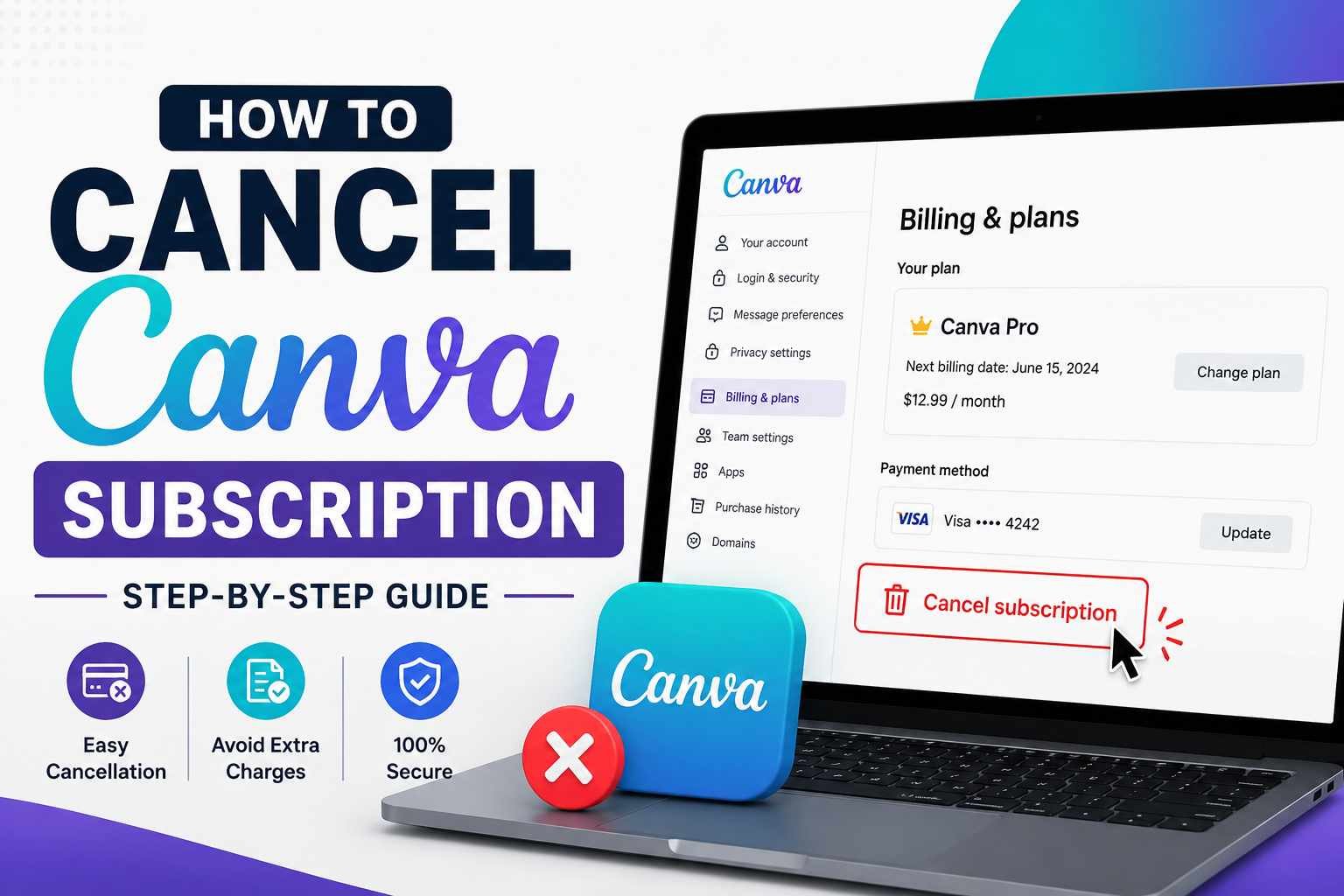
Canva has become one of the most popular graphic design platforms for individuals, businesses, students, and content creators. Its easy-to-use interface and extensive collection of templates make it a preferred choice for creating presentations, social media graphics, marketing materials, and more. While many users enjoy Canva Pro and other paid plans, there may come a time when you no longer need the premium features or want to reduce your monthly expenses.
Understanding how to cancel Canva subscription correctly is important because the process can vary depending on how you originally purchased the plan. Whether you subscribed through Canva’s website, the Apple App Store, or Google Play Store, following the correct steps helps you avoid unexpected charges and ensures a smooth transition to a free account.
This guide explains everything you need to know, including the cancellation process, what happens after cancellation, common issues users face, and important things to consider before ending your subscription.
Understanding Canva Subscription Plans
Before starting the cancellation process, it helps to understand the types of subscriptions Canva offers. Canva provides both free and paid plans designed for different user needs.
The free version includes access to basic design tools, templates, and collaboration features. Paid plans such as Canva Pro and Canva Teams offer advanced features like premium templates, background remover tools, brand kits, larger cloud storage, and additional collaboration options.
When you decide to cancel Canva subscription, your account typically remains active until the end of the current billing period. This means you can continue using premium features until the paid cycle expires.
Reasons People Cancel Their Canva Subscription
Many users choose to cancel for practical reasons. Some no longer require advanced design tools because their projects have ended. Others may be switching to alternative software or looking to reduce monthly expenses.
Businesses occasionally cancel when marketing campaigns are completed, while students may only need premium access during a specific academic period. In some cases, users simply find that the free version provides enough functionality for their needs.
Regardless of the reason, understanding the cancellation process helps avoid confusion and unnecessary charges.
How to Cancel Canva Subscription Through the Canva Website
If you purchased your subscription directly from Canva’s website, the cancellation process is straightforward.
First, log in to your Canva account using your preferred browser. Once logged in, click your profile picture located in the upper-right corner of the dashboard. From the menu, select “Settings” and then navigate to the “Billing & Plans” section.
Inside this area, you will see details about your active subscription. Locate the option to manage your plan and choose the cancellation option. Canva may ask for feedback regarding your decision before confirming the request.
After completing the steps, you should receive a confirmation message indicating that your subscription has been successfully canceled. It is also a good idea to check your email for a cancellation confirmation notice.
How to Cancel Canva Subscription on iPhone or iPad
Users who subscribed through Apple’s App Store must manage their subscription through Apple rather than Canva.
Open the Settings app on your iPhone or iPad and tap your Apple ID at the top of the screen. Next, select “Subscriptions” to view all active subscriptions linked to your Apple account.
Find Canva in the list and tap it. You will then see the option to cancel the subscription. Follow the on-screen instructions to confirm your choice.
Because Apple handles billing for App Store purchases, Canva cannot directly cancel subscriptions purchased through Apple’s system.
How to Cancel Canva Subscription on Android Devices
Android users who subscribed through Google Play Store need to manage the subscription using Google Play.
Open the Google Play Store and tap your profile icon. Select “Payments & Subscriptions” and then choose “Subscriptions.” Locate Canva from the subscription list and tap it.
You will see an option to cancel the plan. Follow the prompts provided by Google Play to complete the process.
After cancellation, premium access generally remains available until the current billing cycle ends.
What Happens After Cancellation
Many users worry about losing their work after they cancel a paid plan. Fortunately, Canva does not immediately delete your designs when a subscription ends.
Your account usually reverts to the free version once the billing period expires. Existing designs remain accessible, but some premium elements may become restricted. If a design contains premium assets that require a paid subscription, editing or exporting those elements may require payment or replacement.
It is always wise to download important projects before your premium access expires. This ensures you have copies of your work regardless of future account changes.
Important Things to Check Before Canceling
Before you cancel Canva subscription, take a few moments to review your account and projects.
Check whether you have any active team memberships, shared brand kits, or collaborative projects. Team administrators should ensure that team members understand any changes that may affect shared resources.
You should also review your billing date. Canceling close to the renewal date can help prevent accidental charges if you no longer plan to use the service.
Downloading important templates, presentations, videos, and marketing materials is another good practice. Having offline copies provides additional security and convenience.
Common Cancellation Problems and Solutions
Some users encounter difficulties during the cancellation process. One common issue is not seeing the cancellation option within the Canva dashboard.
This usually happens when the subscription was purchased through Apple or Google Play rather than directly from Canva. In such cases, the subscription must be managed through the original payment platform.
Another common problem is confusion regarding multiple Canva accounts. If you have more than one email address, ensure you are logged into the account associated with the active subscription.
If charges continue after cancellation, review your billing records and confirmation emails. Contact Canva support with relevant documentation if you believe an error has occurred.
Alternatives to Full Cancellation
Not every user needs to completely stop using Canva. In some situations, switching to a different plan may be more beneficial.
For example, users who need occasional design tools may find that the free plan offers sufficient functionality. Businesses can also evaluate whether a smaller team plan better fits their requirements and budget.
Downgrading instead of completely leaving the platform allows continued access to Canva’s design environment while reducing costs.
How to Verify That Your Subscription Is Canceled
After completing the cancellation process, verification is important. Visit your account settings and review the subscription section. You should see information indicating that your plan will expire at the end of the billing cycle rather than automatically renew.
Checking for a confirmation email provides additional assurance. Keep this email for future reference in case billing questions arise later.
If you subscribed through Apple or Google Play, reviewing your active subscriptions list can confirm that Canva is no longer scheduled for renewal.
Final Thoughts
Choosing to cancel Canva subscription is a simple process when you understand how your account was originally billed. Whether your subscription was purchased directly through Canva, the Apple App Store, or Google Play Store, following the correct cancellation steps helps ensure a smooth experience.
Before ending your plan, consider downloading important projects, reviewing team settings, and checking your renewal date. Remember that most users retain access to premium features until the end of their current billing period, after which the account typically transitions to Canva’s free version.
By taking a few precautionary steps and understanding the process in advance, you can manage your Canva account confidently and avoid unnecessary charges.
More Details : 10 AI Image Generator Tools for Selecting the Best Visual Outputs
FAQs
1. Will I lose my designs after I cancel Canva?
No. Your designs remain in your account, but some premium elements may become restricted.
2. Can I get a refund after canceling?
Refund eligibility depends on Canva’s policies and the platform through which you subscribed.
3. Does cancellation take effect immediately?
Usually, premium access continues until the current billing period ends.
4. Can I reactivate my Canva subscription later?
Yes. You can upgrade to a paid plan again whenever you choose.
5. Why can’t I find the cancel option in Canva?
If you subscribed through Apple or Google Play, you must cancel through those platforms instead of Canva directly.

12 Best Omegle Alternatives for Random Video Chat and Meeting New People

Dbxbqm Meaning: Why It Appears When You Try to Type YouTube

Immediate Loading Implants: How “Fixed Teeth in 48 Hours” Really Works

How UK Mobile Proxies Help Businesses Test Their Websites

Gen AI in Supply Chain: Using Supply Chain Benchmarks to Improve Performance

What Is the UK Theory Test? How It Works, Cost and Pass Mark

Weather the Storm: Why Totally Branded Umbrellas are the UK’s Most Appreciated Gift

How to Store, Wind, and Travel With Your Automatic Watch Collection Without Damaging It

What Do HubSpot Onboarding Services Include?

AI in Supply Chain: How AI Consulting Services Help Build More Intelligent and Resilient Operations
Immediate Loading Implants: How “Fixed Teeth in 48 Hours” Really Works
How UK Mobile Proxies Help Businesses Test Their Websites
Gen AI in Supply Chain: Using Supply Chain Benchmarks to Improve Performance
12 Best Omegle Alternatives for Random Video Chat and Meeting New People
Dbxbqm Meaning: Why It Appears When You Try to Type YouTube
12 Best Omegle Alternatives for Random Video Chat and Meeting New People
Dbxbqm Meaning: Why It Appears When You Try to Type YouTube
Immediate Loading Implants: How “Fixed Teeth in 48 Hours” Really Works
How UK Mobile Proxies Help Businesses Test Their Websites
Gen AI in Supply Chain: Using Supply Chain Benchmarks to Improve Performance
What Is the UK Theory Test? How It Works, Cost and Pass Mark
Weather the Storm: Why Totally Branded Umbrellas are the UK’s Most Appreciated Gift
How to Store, Wind, and Travel With Your Automatic Watch Collection Without Damaging It
What Do HubSpot Onboarding Services Include?
AI in Supply Chain: How AI Consulting Services Help Build More Intelligent and Resilient Operations
-

 Tech9 months ago
xxx is equal to 2022: A Complete Informative Explanation of a Cubic Equation
-

 Celebrity9 months ago
Izzie Balmer Partner: A Deep Dive into the Relationship with Will Hawley
-
 Entertainment9 months ago
The Artistic World of Gege Akutami: A Mastermind Behind Jujutsu Kaisen
-

 Food5 months ago
Best Sushi Rice Brands: A Complete Guide to Choosing the Right Rice for Sushi