
Tech
Understanding SOS on iPhone: How to Use It and Stay Safe

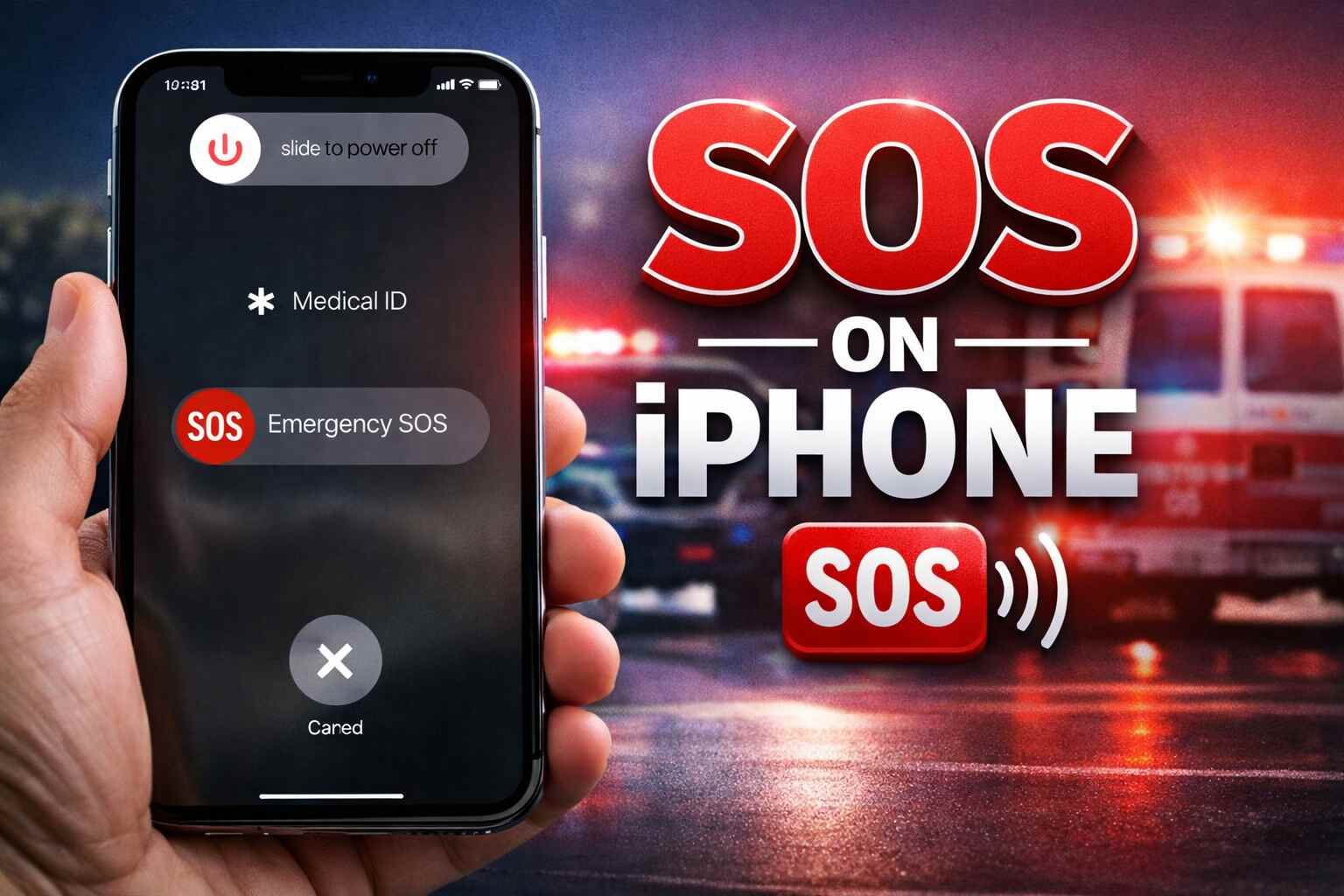
iPhone devices come with an essential feature known as SOS on iPhone. This feature is designed to help you quickly contact emergency services when you are in danger or facing a medical emergency. Learning how to use it correctly can save lives. In this article, we will explain how SOS on iPhone works, how to set it up, and what to do in emergencies.
What is SOS on iPhone?
SOS on iPhone is an emergency feature that allows users to contact local emergency services without unlocking their phone. It can also send your current location to your emergency contacts. This feature is built into iPhones running iOS 11 and later. Once activated, your iPhone will automatically dial the local emergency number, such as 911 in the US, and notify selected contacts that you need help.
How to Activate SOS on iPhone
Activating SOS on iPhone is simple but varies slightly depending on the model.
- iPhone 8 and Later: Press and hold the side button and one of the volume buttons until the Emergency SOS slider appears. Slide it to call emergency services.
- iPhone 7 or Earlier: Rapidly press the power button five times. The Emergency SOS slider will appear, allowing you to make the call.
You can also enable Auto Call in settings, which automatically dials emergency services when the button combination is used.
Setting Up Emergency Contacts
Emergency contacts are the people your iPhone will notify when you use SOS. Setting them up ensures help is alerted even if you cannot speak.
- Open the Health app.
- Tap your profile picture and select Medical ID.
- Tap Edit, then scroll to Emergency Contacts.
- Add the contacts and specify their relationship to you.
Once set, your emergency contacts receive a text message with your current location after an SOS call.
Understanding How SOS Calls Work
When you use SOS on iPhone, the device will connect to local emergency services. Your iPhone briefly displays your location and a countdown if Auto Call is enabled. During the call, you can speak to the operator about your situation. If the call ends without resolution, your iPhone may attempt to call again.
Using SOS Without a Cellular Connection
Even if you have no active cellular plan, SOS on iPhone can work through available Wi-Fi calling or nearby cellular networks. The phone will attempt to reach emergency services using any available network. This makes SOS on iPhone especially useful while traveling or in areas with limited coverage.
Sending Location Updates to Contacts
After an SOS call, your iPhone can continuously update your emergency contacts about your location for several hours. This feature is automatically enabled for contacts you designate as emergency contacts. It provides real-time tracking, which can be critical if you are unable to move or are in danger.
Safety Tips for Using SOS on iPhone
- Only use SOS in real emergencies. Misuse may block emergency lines.
- Ensure Auto Call is set according to your preference.
- Regularly check your emergency contacts and update them if necessary.
- Keep your iPhone software up to date to avoid any glitches in SOS functionality.
Common Misunderstandings About SOS on iPhone
Some users think SOS on iPhone sends an alert without a call. While it does notify contacts, it is primarily designed to dial emergency services. Others may worry about accidental activation. iPhones provide a short countdown before Auto Call begins, helping prevent unintended calls.
Benefits of Using SOS on iPhone
- Quick access to emergency services.
- Automatic alerts to emergency contacts.
- Works even without active cellular service.
- Provides peace of mind during travel, medical emergencies, or dangerous situations.
Limitations of SOS on iPhone
While SOS on iPhone is powerful, it has limitations:
- It requires network availability to reach emergency services.
- Auto Call can occasionally trigger accidentally if buttons are pressed unintentionally.
- Location sharing may be delayed in areas with poor GPS signal.
Conclusion
SOS on iPhone is a life-saving feature that every iPhone user should know how to use. By setting up emergency contacts, understanding how the SOS call functions, and following safety tips, you can ensure help is just a button press away. This feature combines convenience with crucial safety measures, making it an essential part of your iPhone.
More Details: iPhone SE4: What Apple’s Next Compact iPhone Could Mean for Japan
FAQs
1. Can SOS on iPhone be used internationally?
Yes. SOS will attempt to connect to the local emergency number wherever you are.
2. Will my emergency contacts know I made an SOS call?
Yes. Your iPhone automatically sends a text message with your location to your designated emergency contacts.
3. Can I turn off Auto Call for SOS on iPhone?
Yes. Go to Settings > Emergency SOS, and toggle off Auto Call.
4. Does SOS on iPhone work without cellular service?
Yes. If cellular service is unavailable, your iPhone will try to reach emergency services through Wi-Fi calling or other nearby networks.
5. How long will my iPhone share location with emergency contacts?
Your location updates continue for several hours after the SOS call, allowing your contacts to track your location in real time.

12 Best Omegle Alternatives for Random Video Chat and Meeting New People

Dbxbqm Meaning: Why It Appears When You Try to Type YouTube

Immediate Loading Implants: How “Fixed Teeth in 48 Hours” Really Works

How UK Mobile Proxies Help Businesses Test Their Websites

Gen AI in Supply Chain: Using Supply Chain Benchmarks to Improve Performance

What Is the UK Theory Test? How It Works, Cost and Pass Mark

Weather the Storm: Why Totally Branded Umbrellas are the UK’s Most Appreciated Gift

How to Store, Wind, and Travel With Your Automatic Watch Collection Without Damaging It

What Do HubSpot Onboarding Services Include?

AI in Supply Chain: How AI Consulting Services Help Build More Intelligent and Resilient Operations
Immediate Loading Implants: How “Fixed Teeth in 48 Hours” Really Works
How UK Mobile Proxies Help Businesses Test Their Websites
Gen AI in Supply Chain: Using Supply Chain Benchmarks to Improve Performance
12 Best Omegle Alternatives for Random Video Chat and Meeting New People
Dbxbqm Meaning: Why It Appears When You Try to Type YouTube
12 Best Omegle Alternatives for Random Video Chat and Meeting New People
Dbxbqm Meaning: Why It Appears When You Try to Type YouTube
Immediate Loading Implants: How “Fixed Teeth in 48 Hours” Really Works
How UK Mobile Proxies Help Businesses Test Their Websites
Gen AI in Supply Chain: Using Supply Chain Benchmarks to Improve Performance
What Is the UK Theory Test? How It Works, Cost and Pass Mark
Weather the Storm: Why Totally Branded Umbrellas are the UK’s Most Appreciated Gift
How to Store, Wind, and Travel With Your Automatic Watch Collection Without Damaging It
What Do HubSpot Onboarding Services Include?
AI in Supply Chain: How AI Consulting Services Help Build More Intelligent and Resilient Operations
-

 Tech9 months ago
xxx is equal to 2022: A Complete Informative Explanation of a Cubic Equation
-

 Celebrity8 months ago
Izzie Balmer Partner: A Deep Dive into the Relationship with Will Hawley
-

 Entertainment9 months ago
The Artistic World of Gege Akutami: A Mastermind Behind Jujutsu Kaisen
-

 Food5 months ago
Best Sushi Rice Brands: A Complete Guide to Choosing the Right Rice for Sushi