
How to
How to Change Default Browser on Mac: Complete Guide for Faster and Easier Browsing

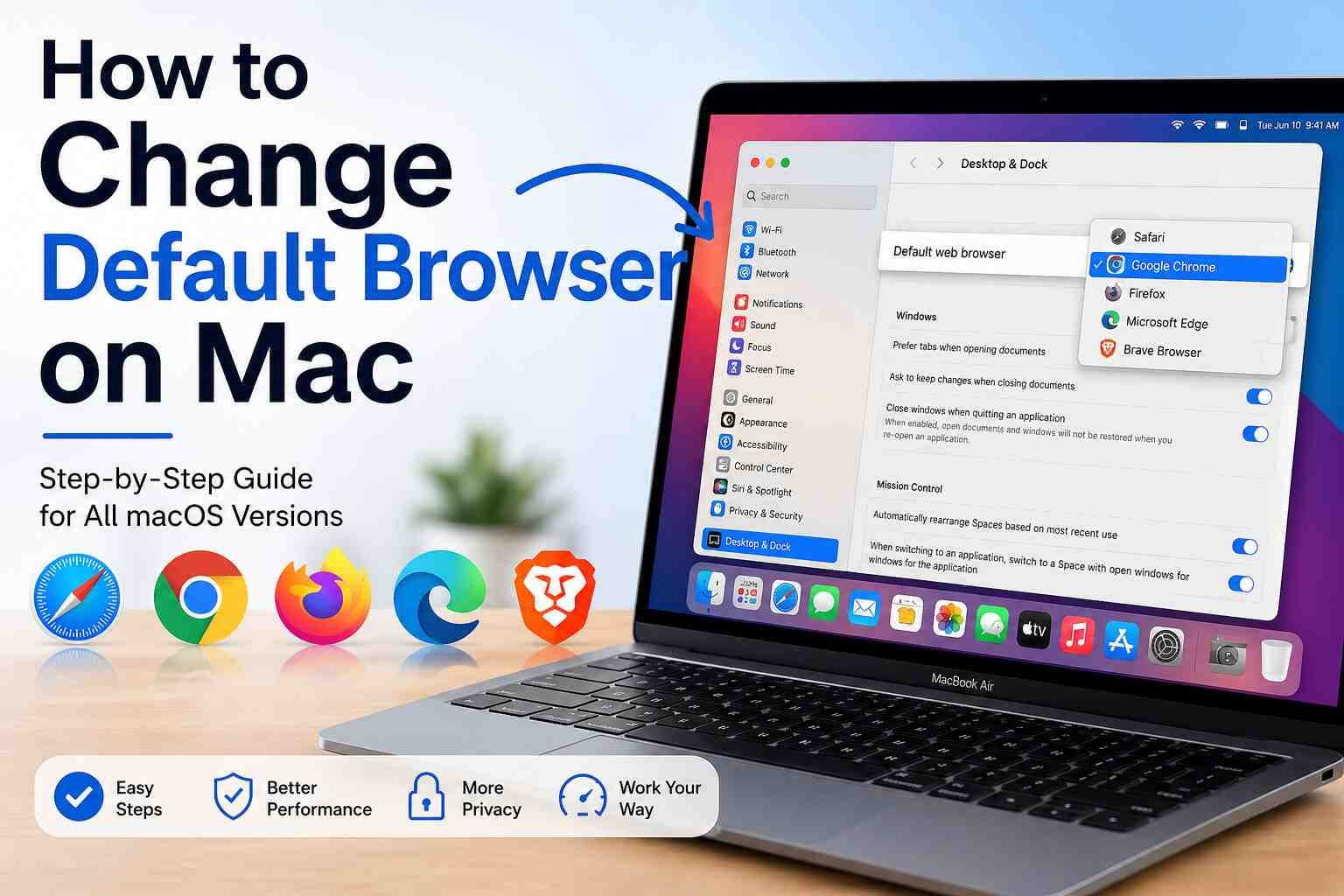
Choosing the right web browser can make a big difference in your daily workflow. Some people prefer Safari because it works smoothly with Apple devices, while others choose Chrome, Firefox, or Brave for extra features and extensions. If links keep opening in the wrong browser, it can quickly become frustrating. That is why learning how to change default browser on mac is useful for every Mac user.
In this guide, you will learn the easiest methods, common troubleshooting steps, and helpful tips to make sure your preferred browser always opens links, files, and web pages.
Why Your Default Browser Matters
Your default browser is the app your Mac automatically uses whenever you click a web link in email, messages, notes, or other apps. It saves time because you do not need to copy and paste links manually.
For example, if you work with Google services, Chrome may feel more convenient. If privacy matters most, Firefox or Brave might be better choices. If battery life and Apple integration are priorities, Safari is often the best option.
Once you understand how to change default browser on mac, you can use the browser that best matches your needs.
What Browsers Can You Set as Default on Mac?
Most modern browsers support default browser settings on macOS. Popular options include:
- Safari
- Google Chrome
- Mozilla Firefox
- Microsoft Edge
- Brave
- Opera
- Arc Browser
As long as the browser is properly installed, macOS usually allows you to make it the default choice.
How to Change Default Browser on Mac Using System Settings
This is the easiest and most common method for modern macOS versions such as Ventura, Sonoma, and later.
Step 1: Open System Settings
Click the Apple logo in the top-left corner of your screen. From the menu, choose System Settings.
Step 2: Go to Desktop & Dock
Scroll through the sidebar and select Desktop & Dock.
Step 3: Find Default Web Browser
Scroll down until you see Default web browser.
Step 4: Select Your Preferred Browser
Click the dropdown menu and choose Safari, Chrome, Firefox, or another installed browser.
That is the fastest way to complete how to change default browser on mac in current macOS versions.
How to Change Default Browser on Older Mac Versions
If your Mac uses Monterey, Big Sur, Catalina, or earlier, the steps are slightly different.
Open System Preferences
Click the Apple menu and choose System Preferences.
Select General
Choose General from the available options.
Choose Default Browser
Look for Default web browser, then pick the browser you want.
Older systems still make the process simple, even if the menu layout looks different.
How to Change Default Browser on Mac from Browser Settings
Many browsers also offer a built-in option to become your default browser.
Google Chrome
Open Chrome, go to Settings, then choose Default Browser. Click Make Default.
Firefox
Open Firefox, enter Settings, then under startup options choose Make Default.
Microsoft Edge
Open Edge settings and locate the default browser section.
Safari
Safari relies mostly on macOS system settings, so changes are usually made through System Settings.
If you are wondering how to change default browser on mac, this method can be quicker because the browser often redirects you straight to the correct Mac settings page.
How to Confirm the Browser Has Changed
After selecting a new default browser, test it to make sure everything works correctly.
Click a Link From Another App
Open Mail, Notes, or Messages and click any web link. It should open in your selected browser.
Restart the App
Some apps may need to be reopened before they recognize the new browser setting.
Restart Your Mac
If links still open in the old browser, a restart can refresh system preferences.
Testing saves time and confirms your change was successful.
Common Reasons the Setting Does Not Change
Sometimes users follow the steps but still face problems. Here are common causes:
Browser Not Installed Properly
If the browser is outdated or incomplete, macOS may not list it correctly.
macOS Needs Updating
Older system versions occasionally have settings bugs. Updating macOS can fix them.
App-Specific Behavior
Some apps open internal links in their own built-in browser rather than the Mac default browser.
Permissions or Restrictions
Work or school Macs may use administrator controls that prevent changes.
Knowing these issues helps when learning how to change default browser on mac without frustration.
Best Browser Choices for Different Users
Your ideal browser depends on how you use your Mac.
Best for Apple Users: Safari
Safari is optimized for battery life, speed, and iCloud syncing.
Best for Google Services: Chrome
Chrome works well with Gmail, Docs, Drive, and many extensions.
Best for Privacy: Firefox or Brave
These browsers offer stronger privacy tools and tracking protection.
Best for Microsoft Users: Edge
Edge integrates nicely with Microsoft 365 and Windows systems.
Choosing the right browser makes everyday browsing smoother.
Tips After Changing Your Default Browser
Once you switch browsers, take a few extra steps for a better experience.
Import Bookmarks
Most browsers let you import bookmarks and saved passwords from another browser.
Sign In to Sync Data
Use your browser account to sync tabs, history, and passwords across devices.
Install Extensions
Add tools like ad blockers, grammar checkers, or productivity extensions.
Update Regularly
Keep the browser updated for security and speed improvements.
These small actions help you get the most value after changing browsers.
Is It Safe to Change the Default Browser?
Yes, changing your default browser is completely safe. It only changes which app opens links automatically. It does not delete files, remove Safari, or harm your Mac.
You can switch back anytime using the same steps. Many users change browsers multiple times depending on work or personal needs.
Final Thoughts
Knowing how to change default browser on mac gives you more control over your Mac experience. Whether you prefer Safari for battery life, Chrome for extensions, or Firefox for privacy, macOS makes the switch simple.
Use System Settings for the quickest method, test links afterward, and keep your chosen browser updated. Once set correctly, every link you open will launch in the browser you actually want to use.
That small change can save time every single day.
More Details : Best Free Mac Cleaners: Tools to Boost Your Mac’s Speed and Storage
FAQs
1. How do I change my browser to Chrome on Mac?
Open System Settings, go to Desktop & Dock, then choose Chrome under Default Web Browser.
2. Why can’t I change my default browser on Mac?
This may happen because of outdated software, admin restrictions, or a browser installation issue.
3. Does changing the default browser remove Safari?
No, Safari remains installed on your Mac even if another browser becomes default.
4. Can I switch back to Safari later?
Yes, you can return to Safari anytime using the same settings menu.
5. What is the fastest browser for Mac?
Safari is often fastest for battery efficiency, while Chrome and Edge may perform better for some web apps.

12 Best Omegle Alternatives for Random Video Chat and Meeting New People

Dbxbqm Meaning: Why It Appears When You Try to Type YouTube

Immediate Loading Implants: How “Fixed Teeth in 48 Hours” Really Works

How UK Mobile Proxies Help Businesses Test Their Websites

Gen AI in Supply Chain: Using Supply Chain Benchmarks to Improve Performance

What Is the UK Theory Test? How It Works, Cost and Pass Mark

Weather the Storm: Why Totally Branded Umbrellas are the UK’s Most Appreciated Gift

How to Store, Wind, and Travel With Your Automatic Watch Collection Without Damaging It

What Do HubSpot Onboarding Services Include?

AI in Supply Chain: How AI Consulting Services Help Build More Intelligent and Resilient Operations
Immediate Loading Implants: How “Fixed Teeth in 48 Hours” Really Works
How UK Mobile Proxies Help Businesses Test Their Websites
Gen AI in Supply Chain: Using Supply Chain Benchmarks to Improve Performance
12 Best Omegle Alternatives for Random Video Chat and Meeting New People
Dbxbqm Meaning: Why It Appears When You Try to Type YouTube
12 Best Omegle Alternatives for Random Video Chat and Meeting New People
Dbxbqm Meaning: Why It Appears When You Try to Type YouTube
Immediate Loading Implants: How “Fixed Teeth in 48 Hours” Really Works
How UK Mobile Proxies Help Businesses Test Their Websites
Gen AI in Supply Chain: Using Supply Chain Benchmarks to Improve Performance
What Is the UK Theory Test? How It Works, Cost and Pass Mark
Weather the Storm: Why Totally Branded Umbrellas are the UK’s Most Appreciated Gift
How to Store, Wind, and Travel With Your Automatic Watch Collection Without Damaging It
What Do HubSpot Onboarding Services Include?
AI in Supply Chain: How AI Consulting Services Help Build More Intelligent and Resilient Operations
-

 Tech9 months ago
xxx is equal to 2022: A Complete Informative Explanation of a Cubic Equation
-

 Celebrity8 months ago
Izzie Balmer Partner: A Deep Dive into the Relationship with Will Hawley
-

 Entertainment9 months ago
The Artistic World of Gege Akutami: A Mastermind Behind Jujutsu Kaisen
-

 Food5 months ago
Best Sushi Rice Brands: A Complete Guide to Choosing the Right Rice for Sushi