
How to
How to Use Keyboard Shortcuts Mac: A Complete, Practical Guide

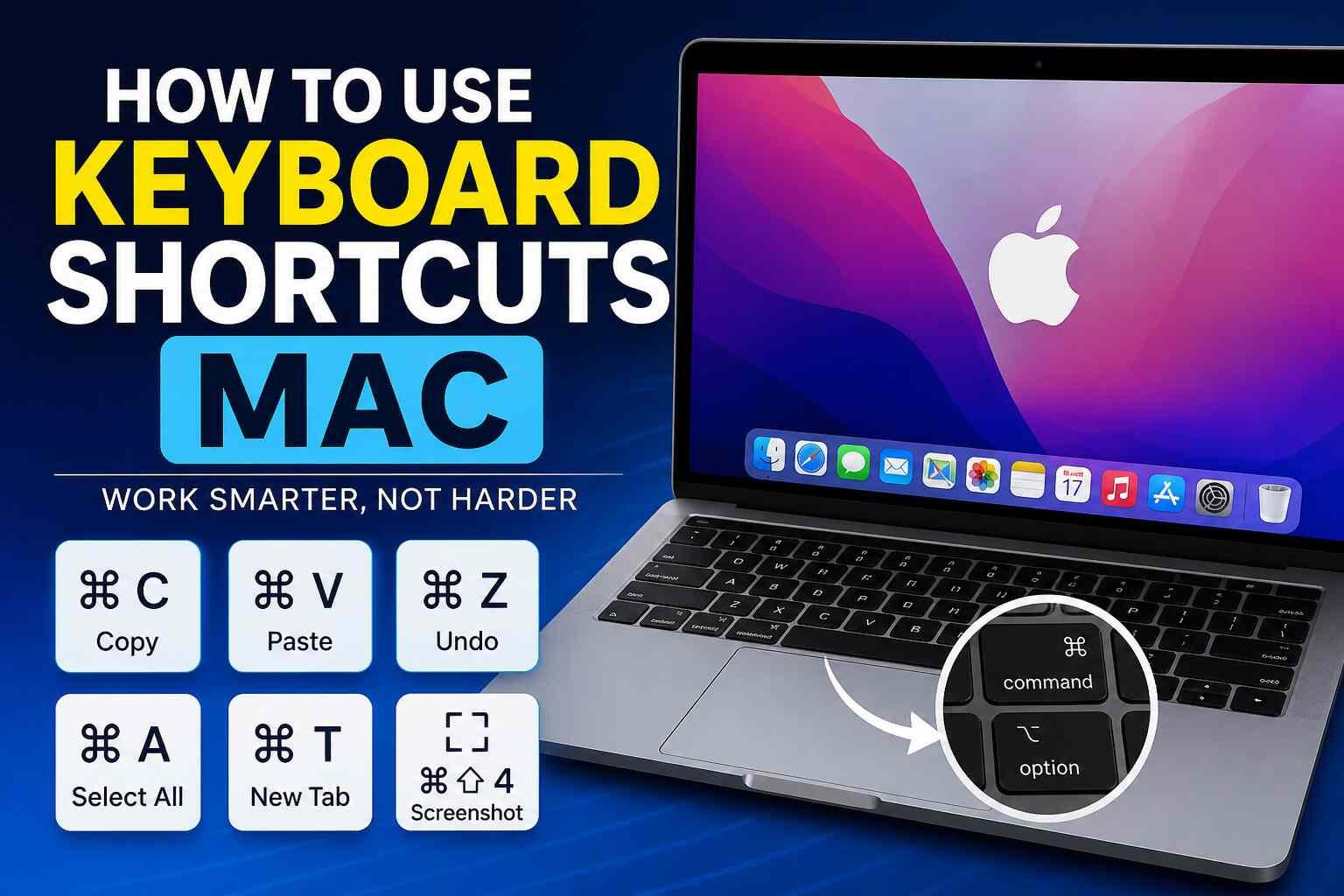
If you use a Mac daily, learning keyboard shortcuts can completely change how you work. Instead of clicking through menus or dragging your cursor around the screen, shortcuts let you perform actions instantly with just a few key presses. This guide explains how to use keyboard shortcuts Mac in a clear, practical way, so you can save time, reduce effort, and become more efficient without needing technical expertise.
Why Keyboard Shortcuts Matter
Keyboard shortcuts are not just about speed—they also improve focus. When you don’t have to switch between mouse and keyboard constantly, your workflow becomes smoother. Over time, this reduces strain on your hands and helps you stay more engaged in what you’re doing. Whether you’re writing, browsing, editing, or coding, shortcuts allow you to stay “in the zone” with fewer interruptions.
Understanding the Basic Modifier Keys
Before learning specific shortcuts, it’s important to understand the main keys involved. On a Mac keyboard, the most commonly used modifier keys are:
- Command (⌘): The most important key, used in most shortcuts
- Option (⌥): Adds alternate functions
- Control (⌃): Often used for system-level commands
- Shift (⇧): Modifies actions, like selecting or capitalizing
Most shortcuts combine one or more of these keys with a letter or symbol.
Essential Everyday Shortcuts
To get started, focus on a few core shortcuts you’ll use constantly. These are the foundation of how to use keyboard shortcuts Mac effectively:
- Command + C: Copy
- Command + V: Paste
- Command + X: Cut
- Command + Z: Undo
- Command + A: Select all
These work across almost every app, making them the easiest way to build muscle memory.
Navigation Shortcuts You Should Know
Moving around quickly is one of the biggest advantages of shortcuts. Instead of using a trackpad, you can jump instantly:
- Command + Tab: Switch between apps
- Command + Space: Open Spotlight search
- Command + H: Hide current window
- Command + M: Minimize window
These shortcuts help you multitask efficiently without breaking your flow.
Working with Text Faster
If you write emails, notes, or documents, text shortcuts can save a lot of time. Here are some useful ones:
- Option + Arrow keys: Move word by word
- Command + Arrow keys: Jump to beginning or end of a line
- Shift + Arrow keys: Select text
- Command + Delete: Delete entire line
Mastering these makes editing and formatting much quicker.
Screenshot Shortcuts on Mac
Taking screenshots is something most users do often, and macOS has built-in shortcuts for it:
- Command + Shift + 3: Capture the entire screen
- Command + Shift + 4: Select a portion of the screen
- Command + Shift + 5: Open screenshot toolbar
These shortcuts eliminate the need for third-party tools in most cases.
Finder Shortcuts for File Management
Finder is where you manage files, and shortcuts here can make organization easier:
- Command + N: Open new Finder window
- Command + Shift + N: Create new folder
- Command + Delete: Move file to Trash
- Spacebar: Quick Look preview
Using these regularly helps you navigate and organize files much faster.
Browser Shortcuts for Faster Browsing
If you spend time online, browser shortcuts are extremely helpful:
- Command + T: Open new tab
- Command + W: Close current tab
- Command + R: Refresh page
- Command + L: Highlight address bar
These shortcuts work in Safari, Chrome, and most other browsers.
Customizing Your Own Shortcuts
One powerful feature of macOS is the ability to create custom shortcuts. If there’s a menu action you use often, you can assign your own key combination:
- Go to System Settings
- Click Keyboard
- Select Keyboard Shortcuts
- Add a custom shortcut for any app
This flexibility allows you to tailor shortcuts to your personal workflow.
How to Remember Shortcuts Easily
Learning shortcuts can feel overwhelming at first, but the key is consistency. Start with just a few and use them daily. Over time, they become automatic. You can also:
- Keep a small list near your desk
- Practice while working, not separately
- Focus on shortcuts you actually need
Gradually, your memory builds without extra effort.
Common Mistakes to Avoid
When learning how to use keyboard shortcuts Mac, some mistakes can slow you down:
- Trying to learn too many at once
- Forgetting that shortcuts may vary slightly between apps
- Not practicing consistently
It’s better to master a few useful shortcuts than memorize dozens you never use.
Advanced Tips for Power Users
Once you’re comfortable, you can explore more advanced shortcuts:
- Use Command + Option + Esc to force quit apps
- Press Control + Command + Q to lock your screen
- Use Command + Shift + . to show hidden files
These are especially useful for troubleshooting and deeper system control.
Accessibility and Shortcuts
Keyboard shortcuts are also important for accessibility. They allow users to interact with their Mac without relying heavily on a mouse or trackpad. macOS includes features like Voice Control and full keyboard access, making shortcuts even more powerful for different needs.
Building a Shortcut Habit
The real benefit of shortcuts comes when they become part of your routine. Instead of thinking about them, your hands naturally perform the actions. This habit builds over time and can significantly improve productivity in both school and work environments.
Conclusion
Learning how to use keyboard shortcuts Mac is one of the simplest ways to improve your efficiency. You don’t need to memorize everything at once—just start small and build gradually. With consistent use, shortcuts become second nature, helping you work faster, stay focused, and get more done with less effort.
More Details : Best Free Mac Cleaners: Tools to Boost Your Mac’s Speed and Storage
FAQs
1. What is the most important key for Mac shortcuts?
The Command (⌘) key is the most important, as it is used in most keyboard shortcuts.
2. How long does it take to learn keyboard shortcuts?
It depends on practice, but most people get comfortable with basic shortcuts within a few days.
3. Can I create my own keyboard shortcuts on Mac?
Yes, macOS allows you to customize shortcuts through System Settings.
4. Do shortcuts work in all apps?
Many shortcuts are universal, but some may vary depending on the app you’re using.
5. Are keyboard shortcuts better than using a mouse?
They are often faster and more efficient, especially for repetitive tasks.

12 Best Omegle Alternatives for Random Video Chat and Meeting New People

Dbxbqm Meaning: Why It Appears When You Try to Type YouTube

Immediate Loading Implants: How “Fixed Teeth in 48 Hours” Really Works

How UK Mobile Proxies Help Businesses Test Their Websites

Gen AI in Supply Chain: Using Supply Chain Benchmarks to Improve Performance

What Is the UK Theory Test? How It Works, Cost and Pass Mark

Weather the Storm: Why Totally Branded Umbrellas are the UK’s Most Appreciated Gift

How to Store, Wind, and Travel With Your Automatic Watch Collection Without Damaging It

What Do HubSpot Onboarding Services Include?

AI in Supply Chain: How AI Consulting Services Help Build More Intelligent and Resilient Operations
Immediate Loading Implants: How “Fixed Teeth in 48 Hours” Really Works
How UK Mobile Proxies Help Businesses Test Their Websites
Gen AI in Supply Chain: Using Supply Chain Benchmarks to Improve Performance
12 Best Omegle Alternatives for Random Video Chat and Meeting New People
Dbxbqm Meaning: Why It Appears When You Try to Type YouTube
12 Best Omegle Alternatives for Random Video Chat and Meeting New People
Dbxbqm Meaning: Why It Appears When You Try to Type YouTube
Immediate Loading Implants: How “Fixed Teeth in 48 Hours” Really Works
How UK Mobile Proxies Help Businesses Test Their Websites
Gen AI in Supply Chain: Using Supply Chain Benchmarks to Improve Performance
What Is the UK Theory Test? How It Works, Cost and Pass Mark
Weather the Storm: Why Totally Branded Umbrellas are the UK’s Most Appreciated Gift
How to Store, Wind, and Travel With Your Automatic Watch Collection Without Damaging It
What Do HubSpot Onboarding Services Include?
AI in Supply Chain: How AI Consulting Services Help Build More Intelligent and Resilient Operations
-

 Tech9 months ago
xxx is equal to 2022: A Complete Informative Explanation of a Cubic Equation
-

 Celebrity8 months ago
Izzie Balmer Partner: A Deep Dive into the Relationship with Will Hawley
-

 Entertainment9 months ago
The Artistic World of Gege Akutami: A Mastermind Behind Jujutsu Kaisen
-

 Food5 months ago
Best Sushi Rice Brands: A Complete Guide to Choosing the Right Rice for Sushi